Schedule Me
Schedule Me
Schedule Me
Appointments made easy.
Appointments made easy.
Appointments made easy.
The Appointments Portal is designed to streamline the process of scheduling meetings between students and faculty. With its user-friendly interface, users can easily create, manage, and track their appointments. Key features include integrated waiting lists, automated email notifications, and a personalized dashboard, ensuring a seamless and efficient scheduling experience.
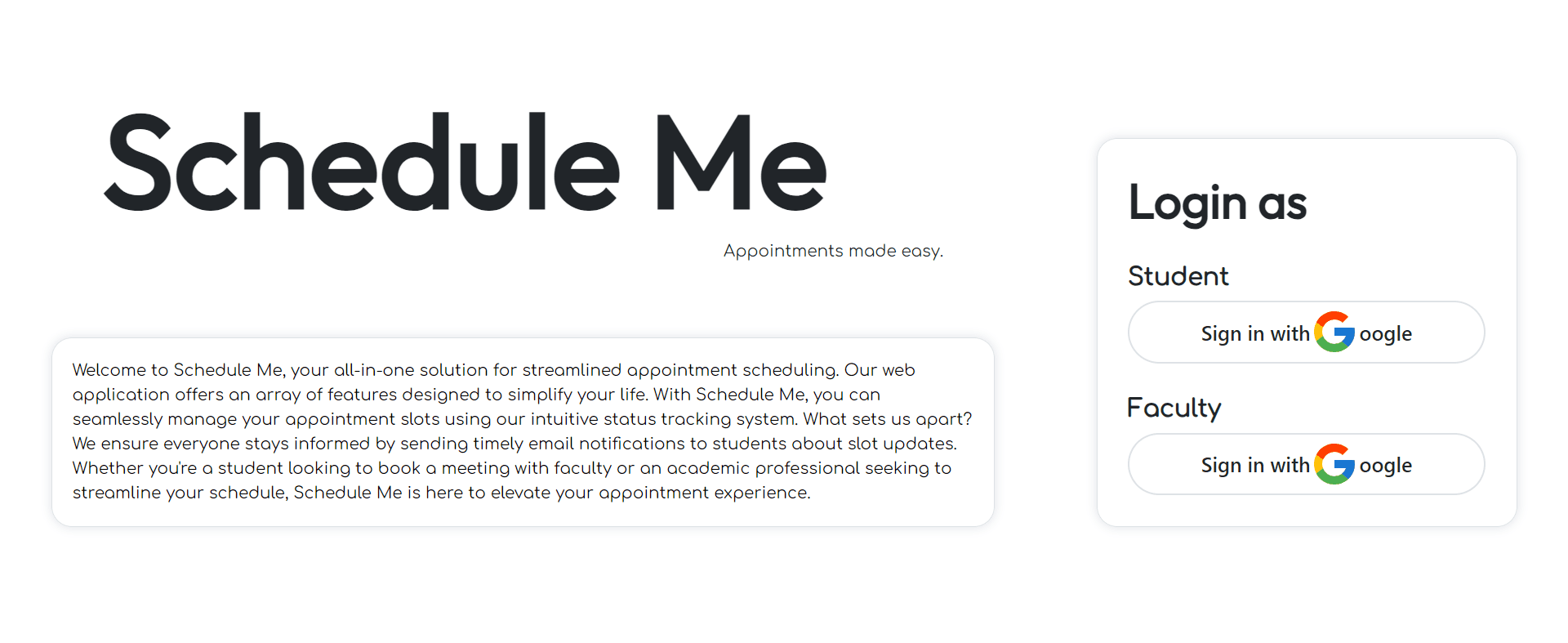
The Appointments Portal is designed to streamline the process of scheduling meetings between students and faculty. With its user-friendly interface, users can easily create, manage, track, and receive notifications about the appointments.
Faculty Portal
Faculty Portal
Faculty / Home page
Faculty / Home page
Faculty / Home page
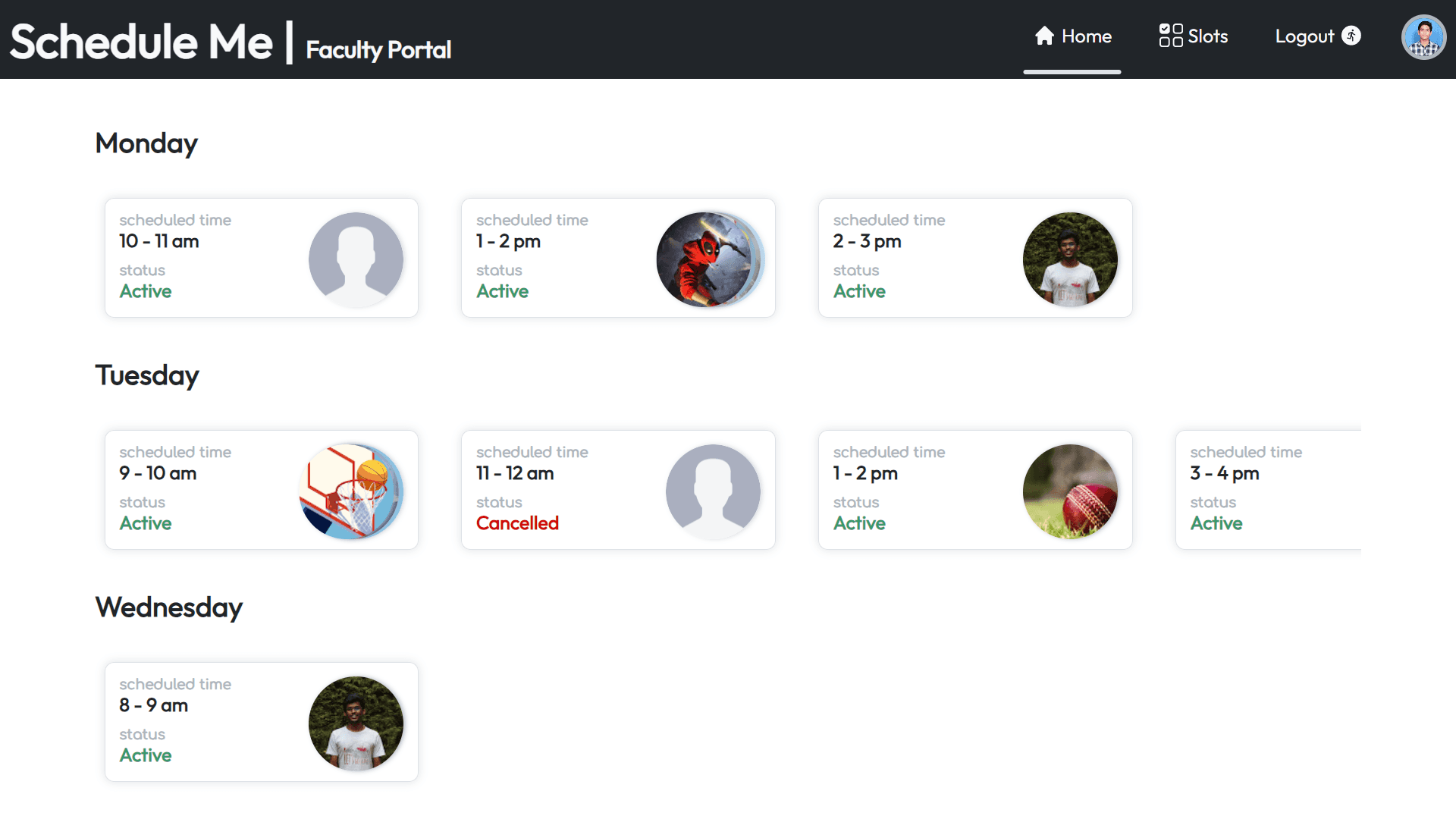
Displays the daily schedule for the current week.
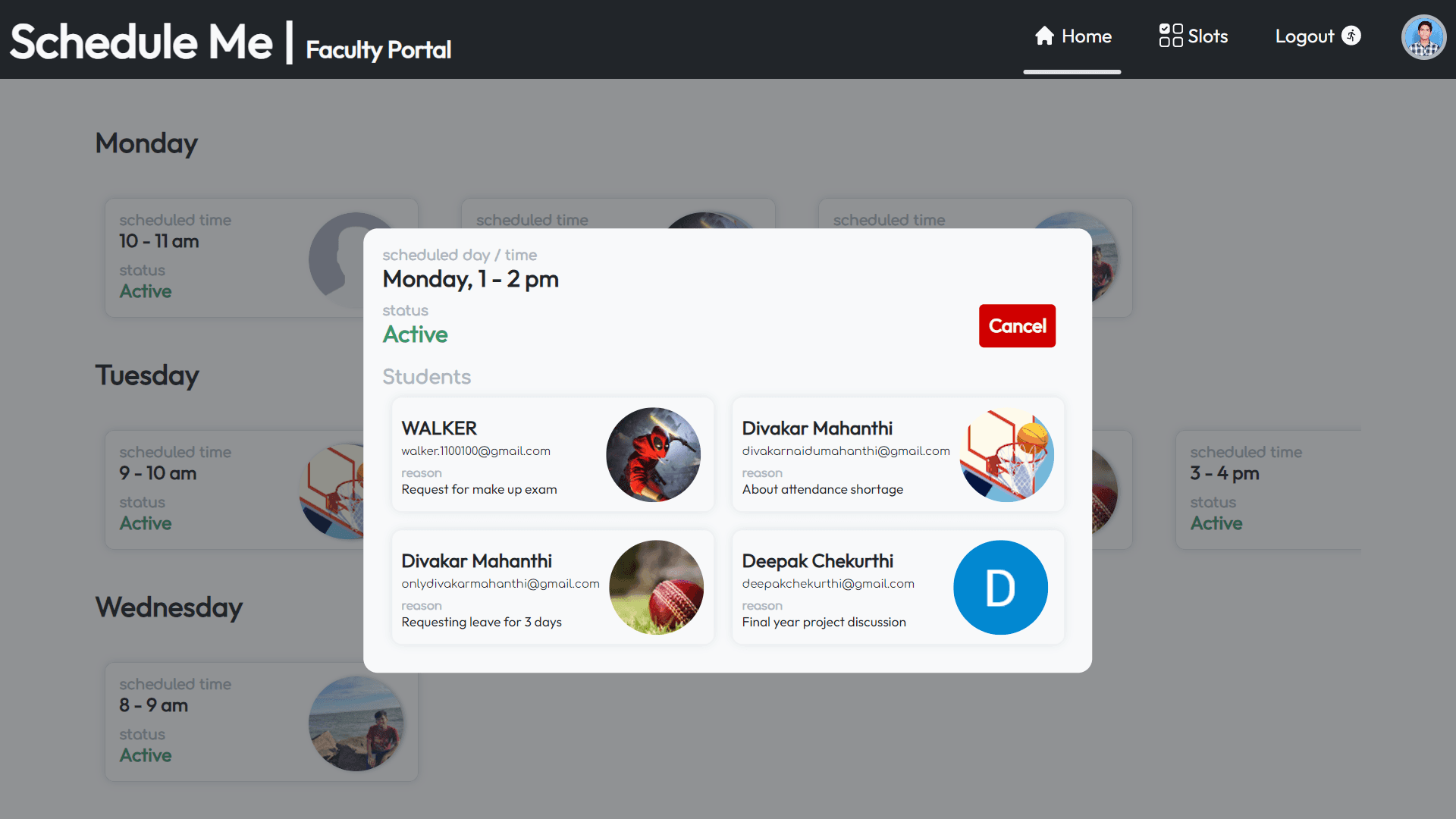
Upon clicking a slot, displays slot details and the first four students in the queue.
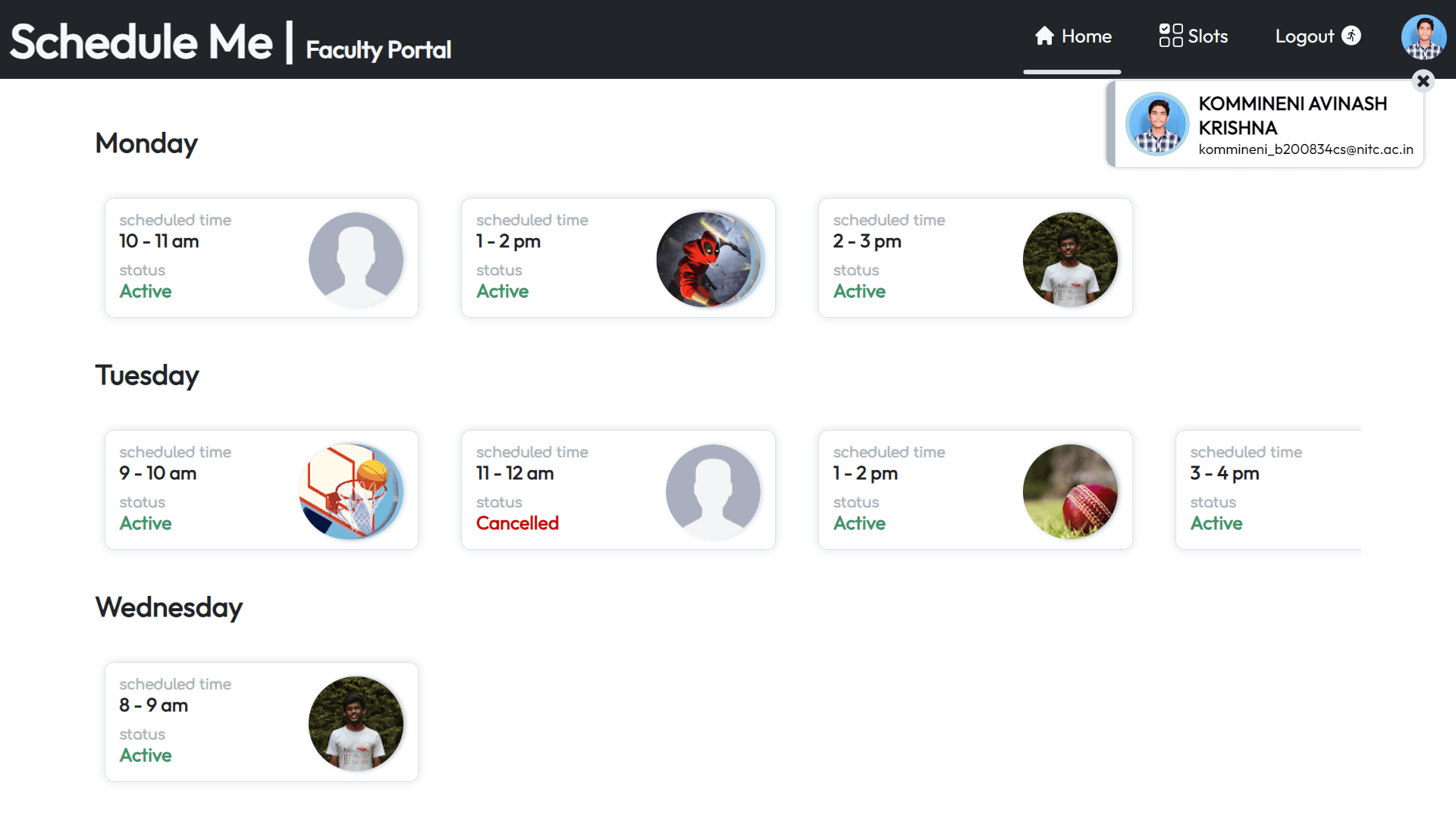
Click on the profile to view current user details.
Displays the daily schedule for the current week.
Upon clicking a slot, displays slot details and the first four students in the queue.
Click on the profile to view current user details.
Displays the daily schedule for the current week.
Upon clicking a slot, displays slot details and the first four students in the queue.
Click on the profile to view current user details.
Displays the daily schedule for the current week.
Upon clicking a slot, displays slot details and the first four students in the queue.
Click on the profile to view current user details.
Faculty / Slots page
Faculty / Slots page
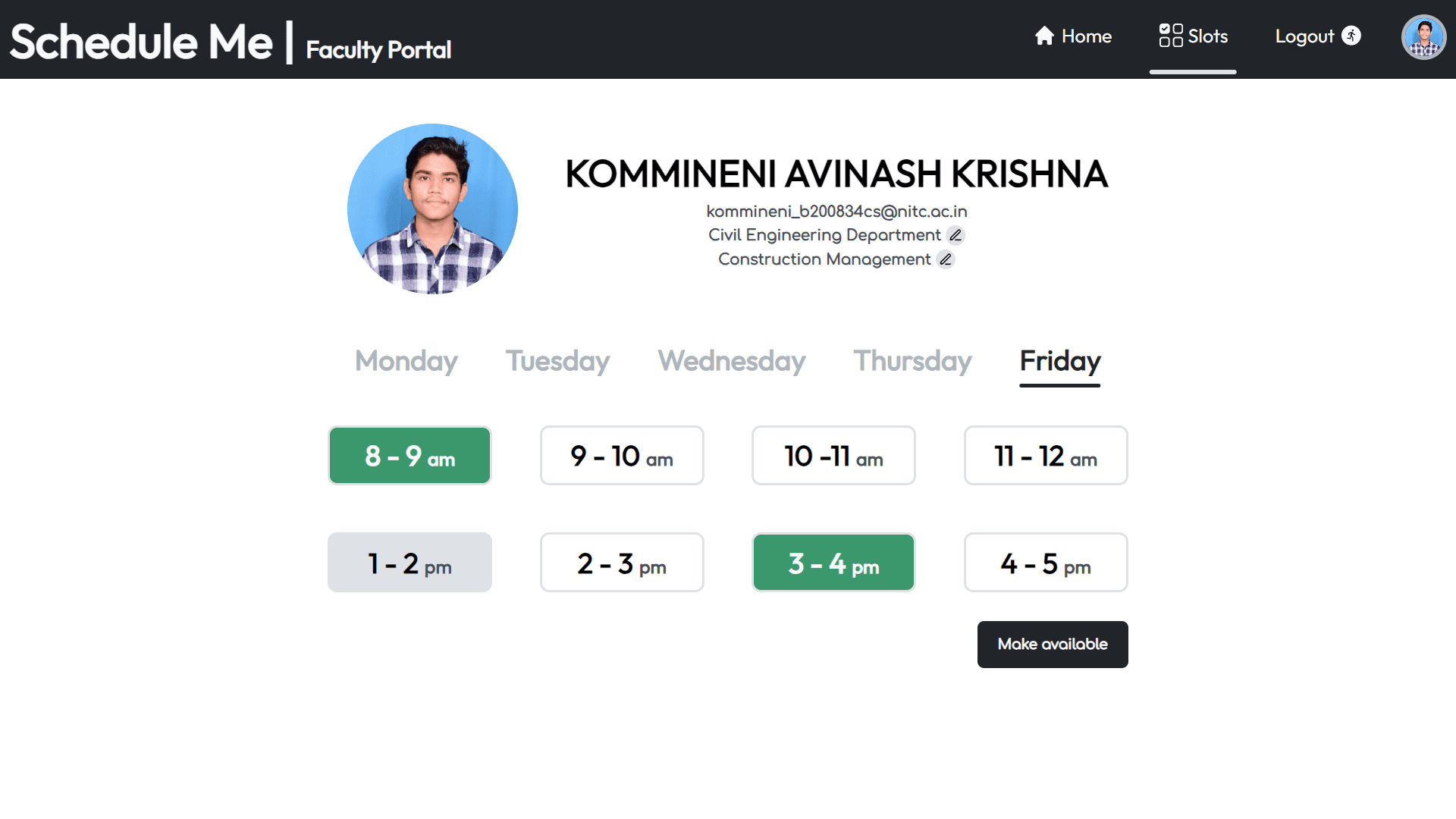
Displays all the slots of the day. Green indicates past slots, and grey indicates currently selected slots.
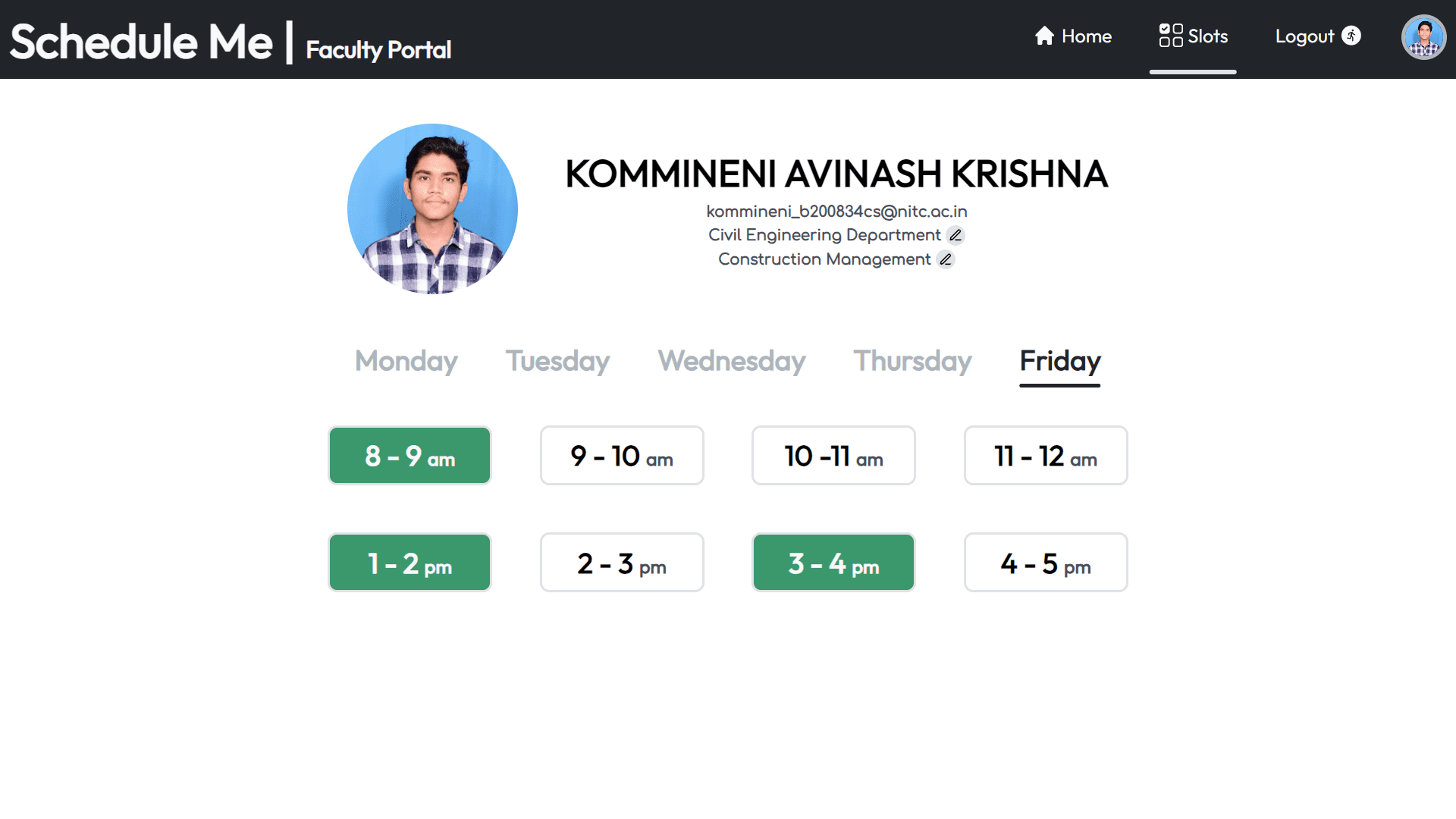
Click on the "Make Available" button to confirm the selection.
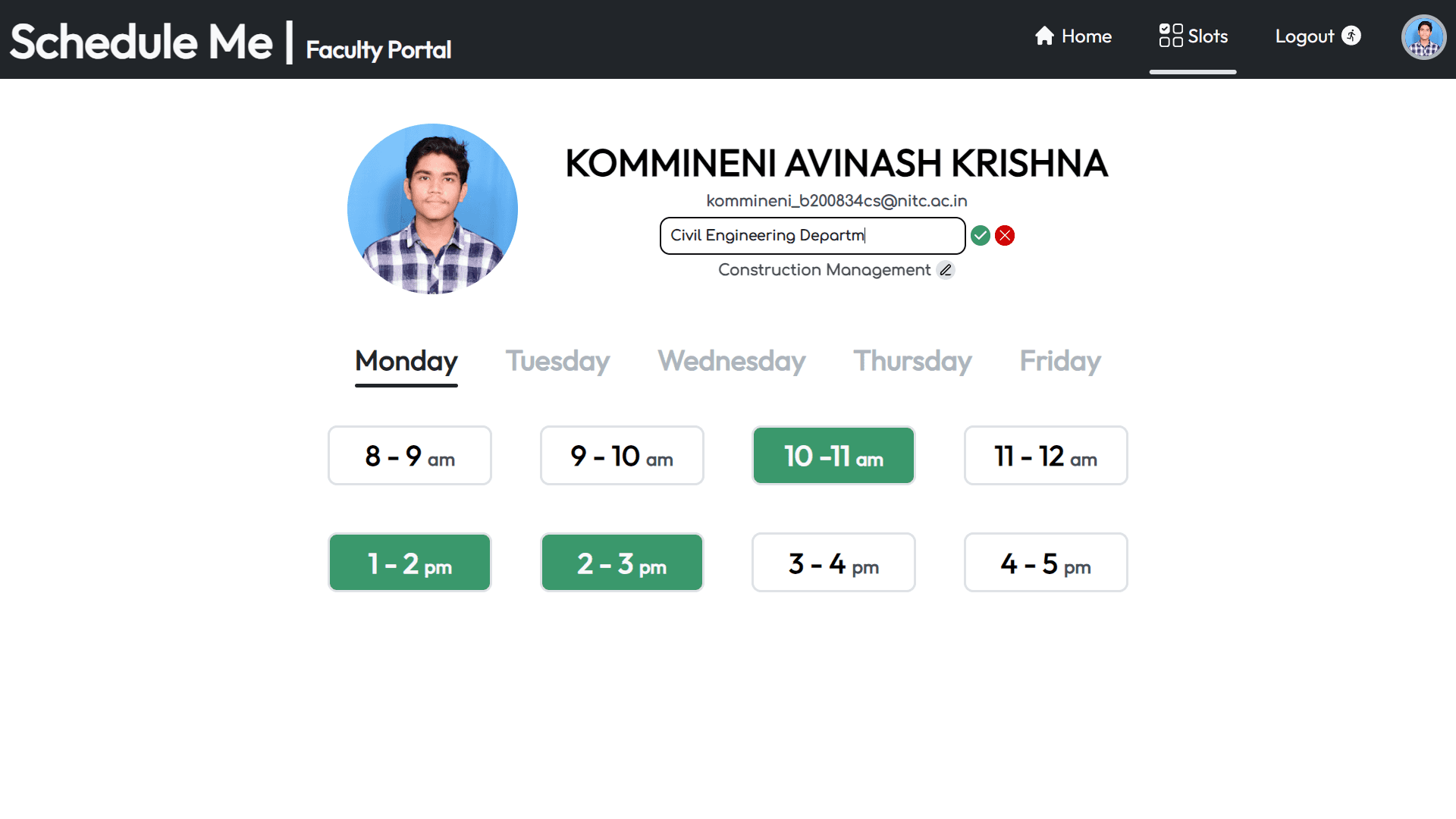
Faculty can edit details such as courses and department.
Displays all the slots of the day. Green indicates past slots, and grey indicates currently selected slots.
Click on the "Make Available" button to confirm the selection.
Faculty can edit details such as courses and department.
Displays all the slots of the day. Green indicates past slots, and grey indicates currently selected slots.
Click on the "Make Available" button to confirm the selection.
Faculty can edit details such as courses and department.
Displays all the slots of the day. Green indicates past slots, and grey indicates currently selected slots.
Click on the "Make Available" button to confirm the selection.
Faculty can edit details such as courses and department.
Student Portal
Student Portal
Student / Home page
Student / Home page
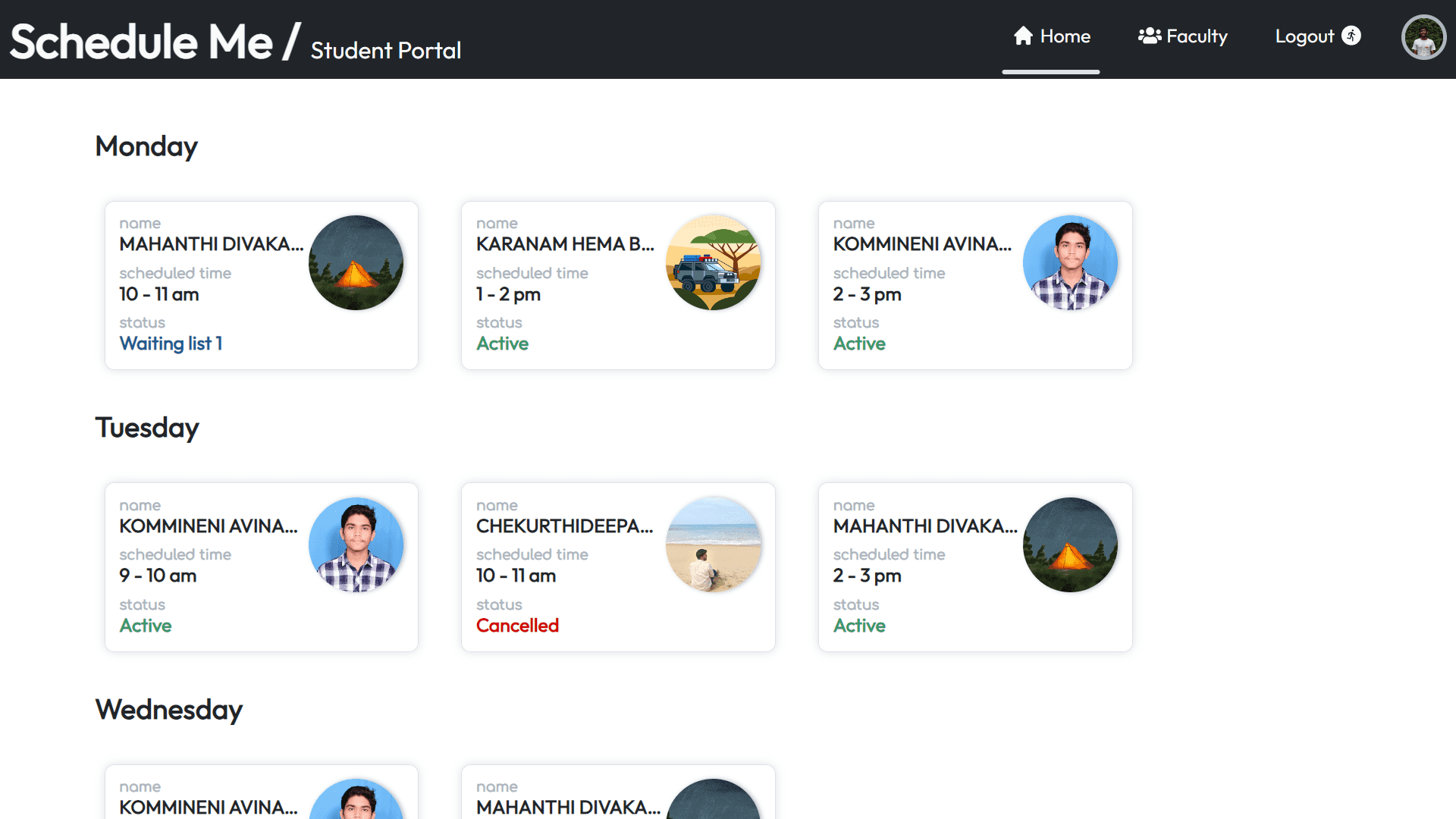
Displays the daily schedule for the current week.
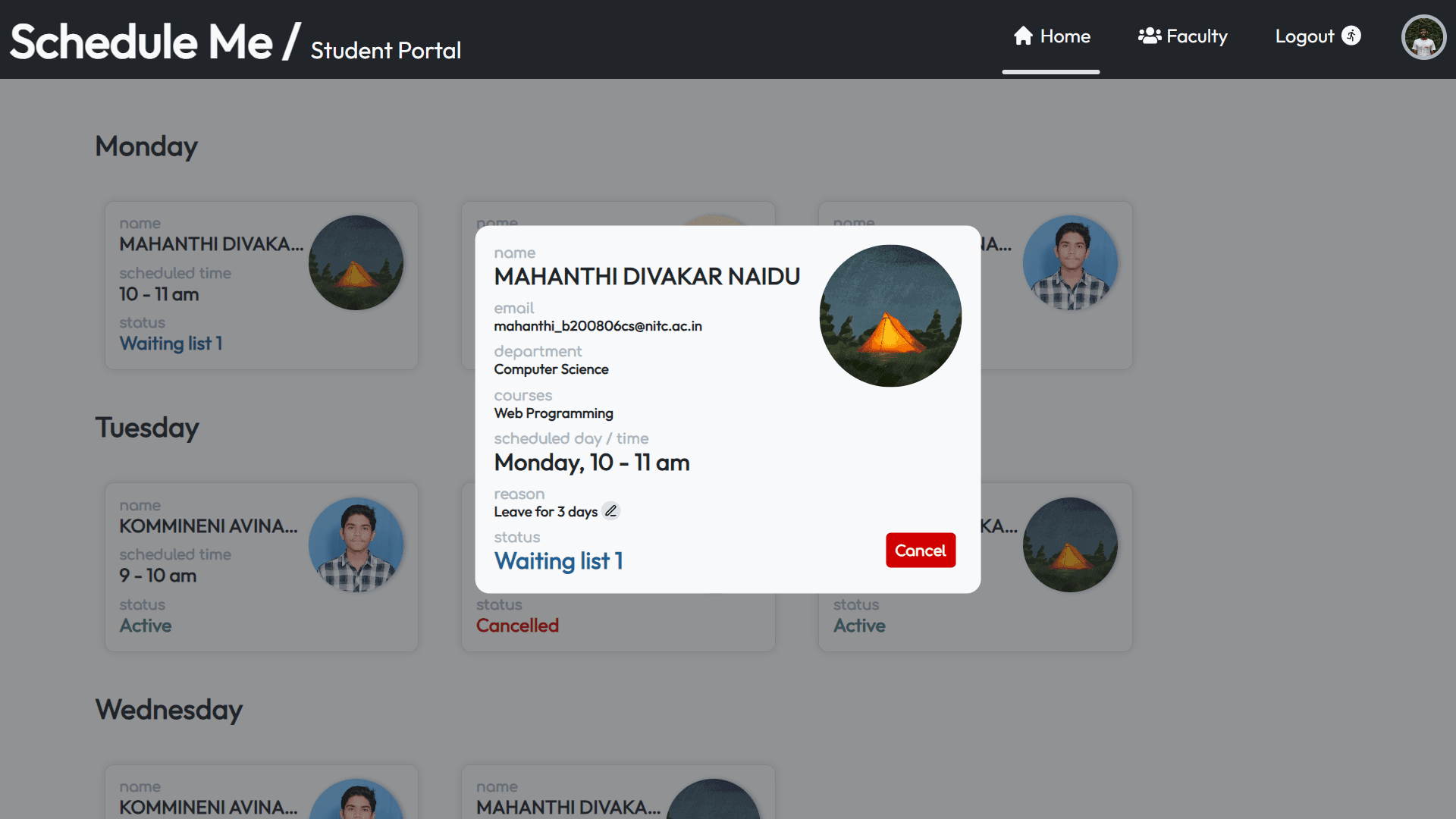
Upon clicking a slot, displays slot details and faculty details.
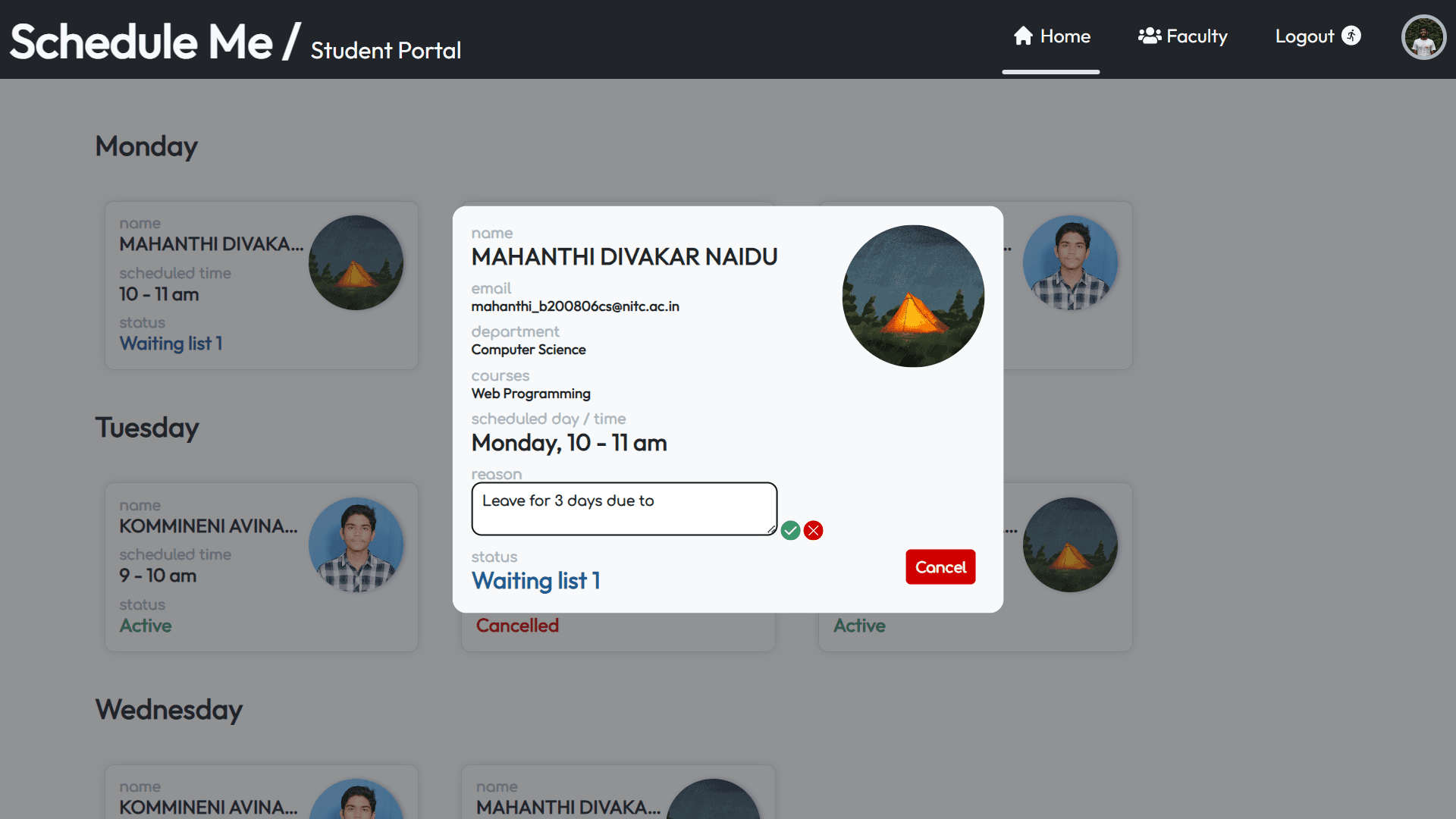
The student can edit the reason for the appointment until it is cancelled or completed.
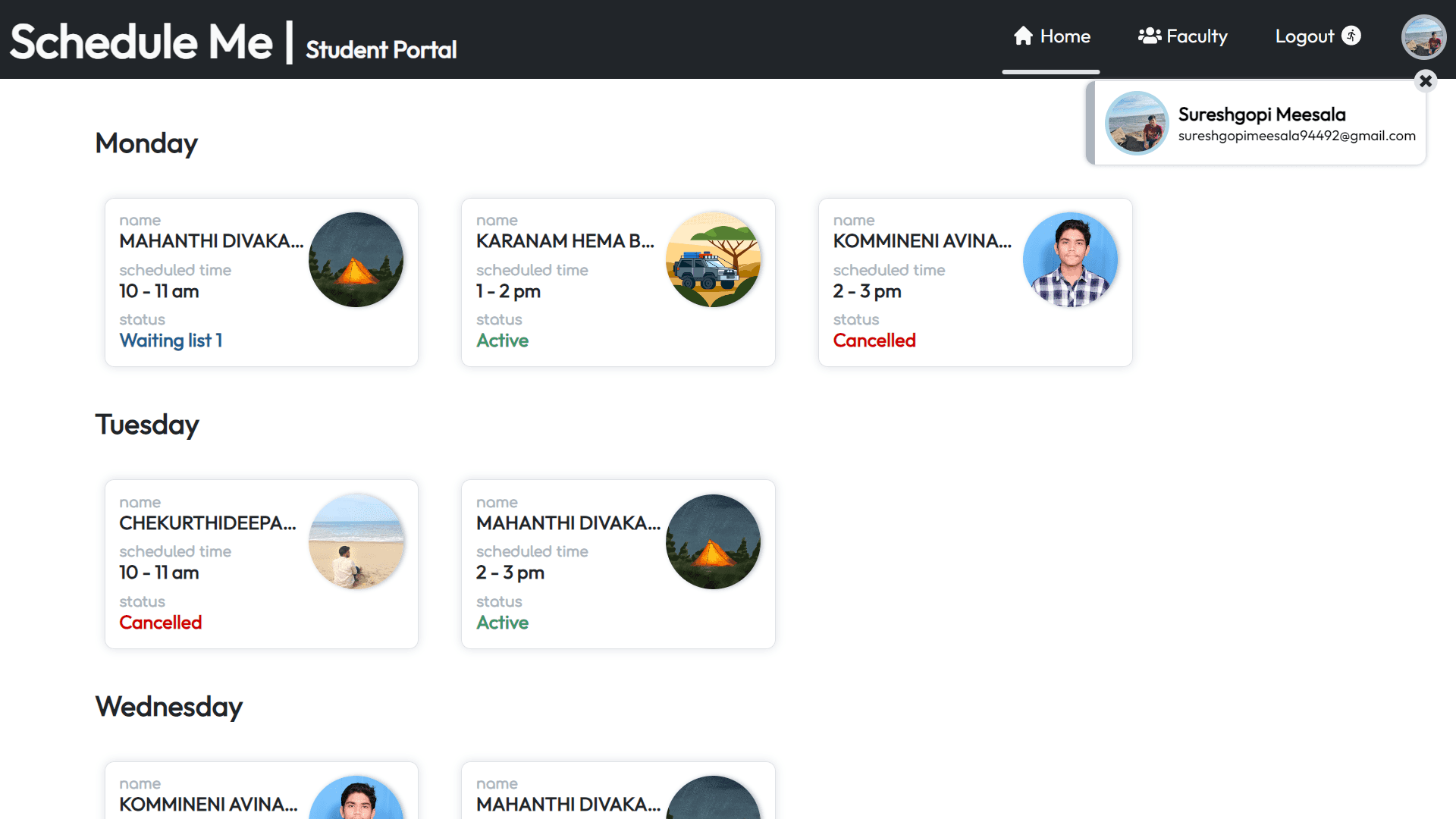
Click on the profile to view current user details.
Displays the daily schedule for the current week.
Upon clicking a slot, displays slot details and faculty details.
The student can edit the reason for the appointment until it is cancelled or completed.
Click on the profile to get current user details.
Displays the daily schedule for the current week.
Upon clicking a slot, displays slot details and faculty details.
The student can edit the reason for the appointment until it is cancelled or completed.
Click on the profile to get current user details.
Displays the daily schedule for the current week.
Upon clicking a slot, displays slot details and faculty details.
The student can edit the reason for the appointment until it is cancelled or completed.
Click on the profile to get current user details.
Student / Faculty page
Student / Faculty page
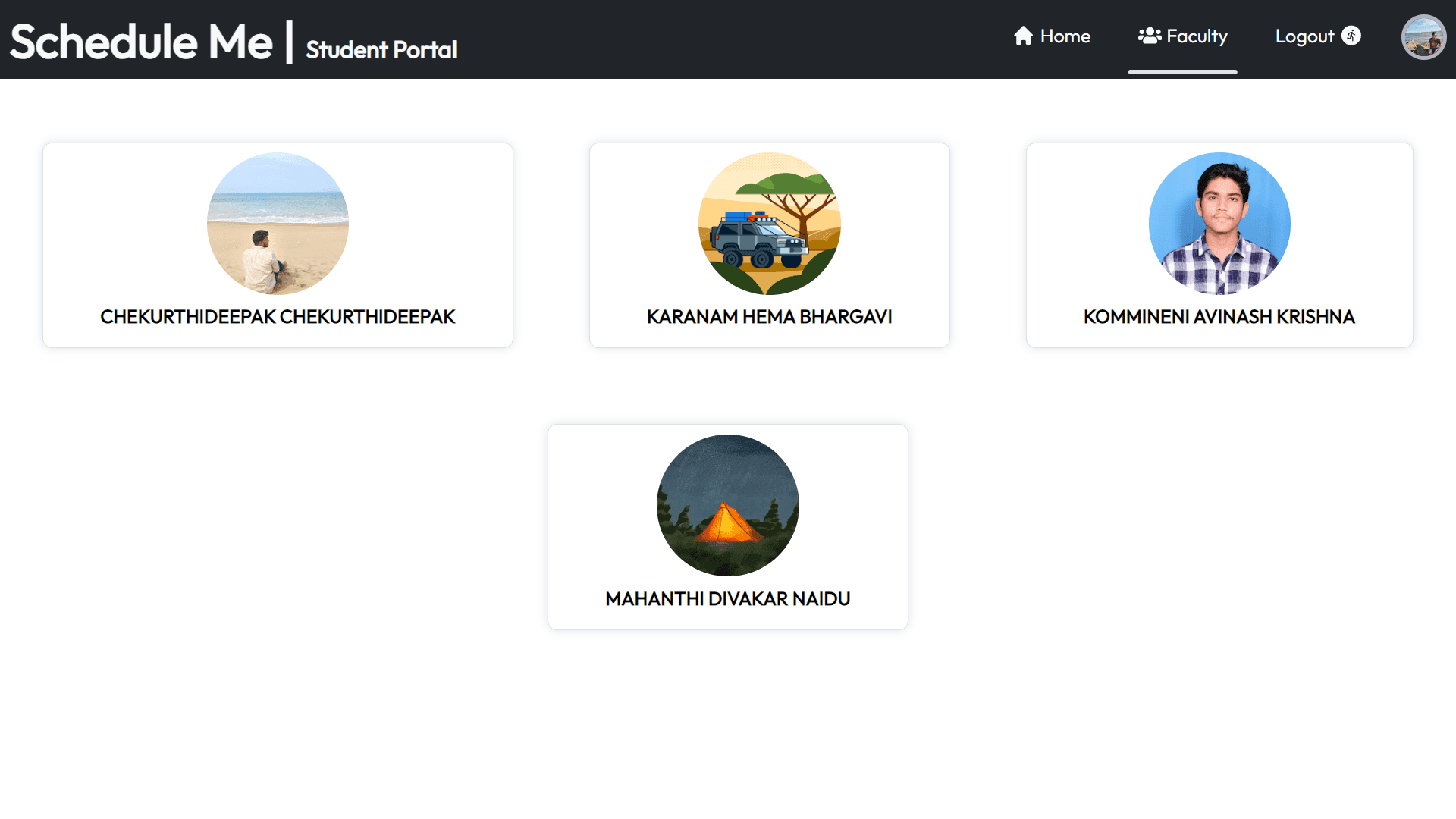
Displays all available faculty members. Students can click on a faculty to choose slots.
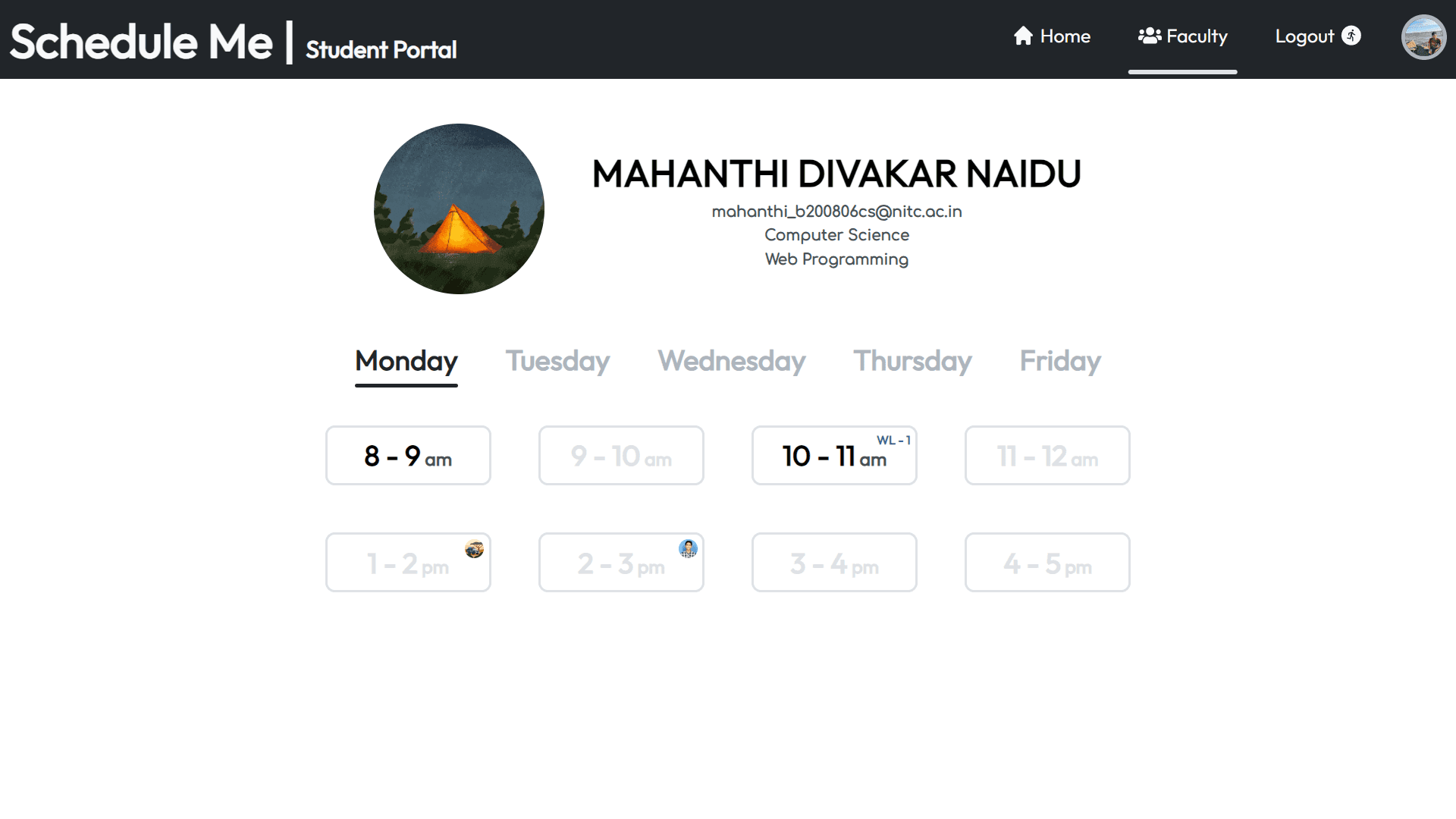
Displays all available slots of a faculty, with unavailable slots shown as blocked.
Faculty profiles on a slot indicate appointments occurring at the same time with that faculty.
As a slot can accommodate only 4 students, a waiting list starts if it exceeds that limit.
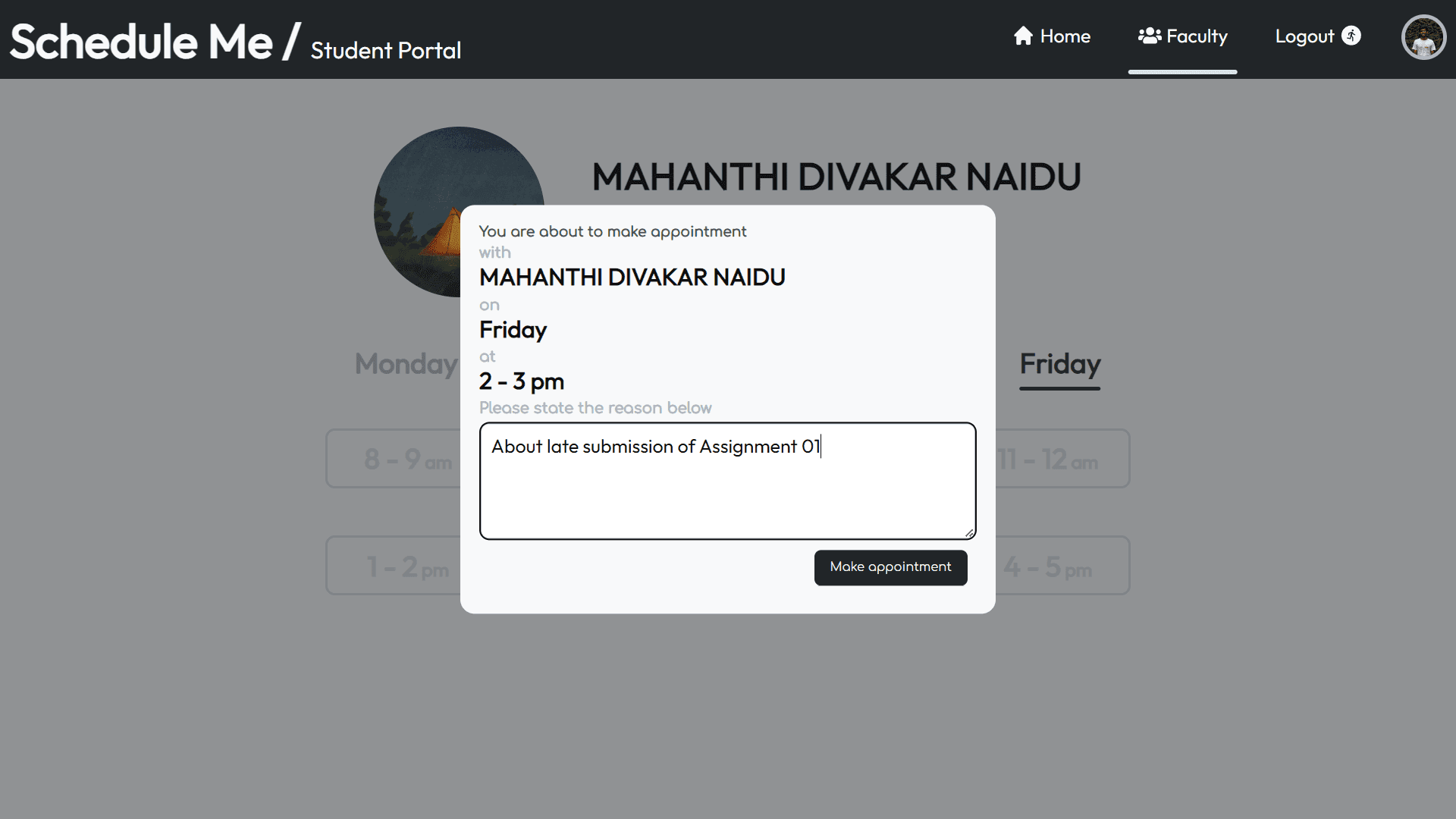
To make an appointment, students must provide a reason for it.
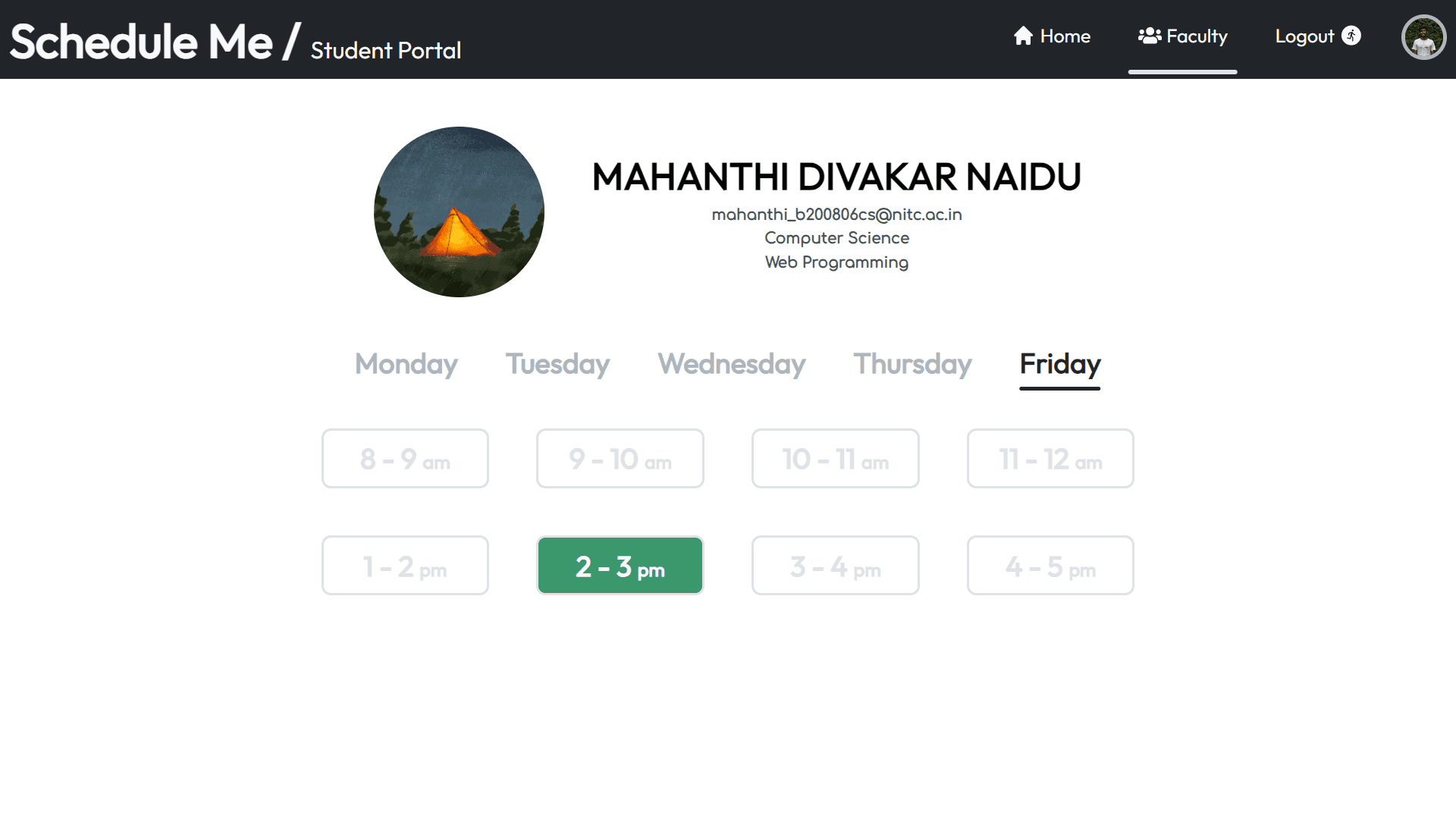
Once provided, students can click the "Make Appointment" button to confirm.
Displays all available faculty members. Students can click on a faculty to choose slots.
Displays all available slots of a faculty, with unavailable slots shown as blocked.
Faculty profiles on a slot indicate appointments occurring at the same time with that faculty.
As a slot can accommodate only 4 students, a waiting list starts if it exceeds that limit.
To make an appointment, students must provide a reason for it.
Once provided, students can click the "Make Appointment" button to confirm.
Displays all available faculty members. Students can click on a faculty to choose slots.
Displays all available slots of a faculty, with unavailable slots shown as blocked.
Faculty profiles on a slot indicate appointments occurring at the same time with that faculty.
As a slot can accommodate only 4 students, a waiting list starts if it exceeds that limit.
To make an appointment, students must provide a reason for it.
Once provided, students can click the "Make Appointment" button to confirm.
Displays all available faculty members. Students can click on a faculty to choose slots.
Displays all available slots of a faculty, with unavailable slots shown as blocked.
Faculty profiles on a slot indicate appointments occurring at the same time with that faculty.
As a slot can accommodate only 4 students, a waiting list starts if it exceeds that limit.
To make an appointment, students must provide a reason for it.
Once provided, students can click the "Make Appointment" button to confirm.
Student / Email notifications
Student / Email notifications
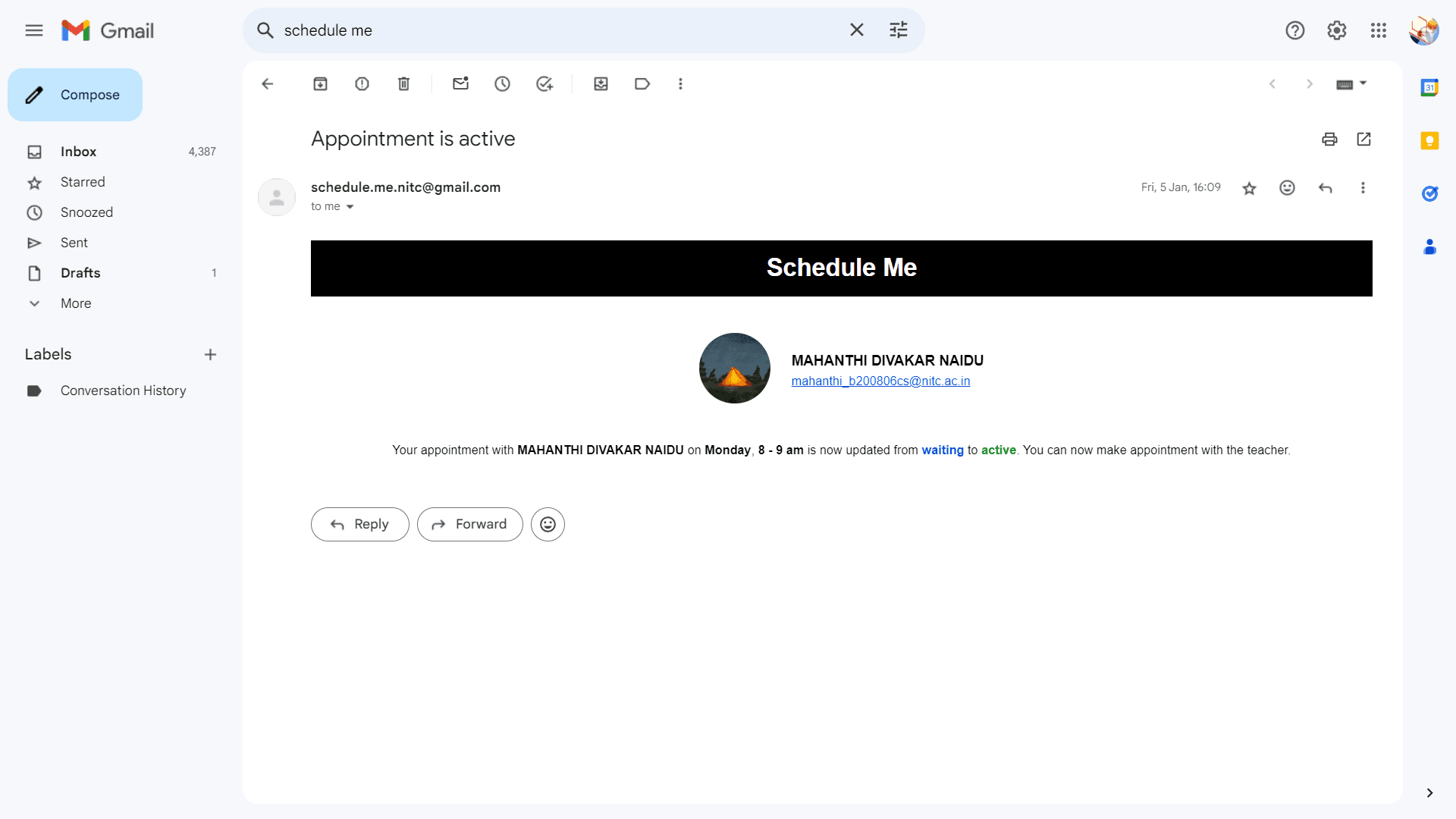
Notifies the student when the status changes from waiting to active.
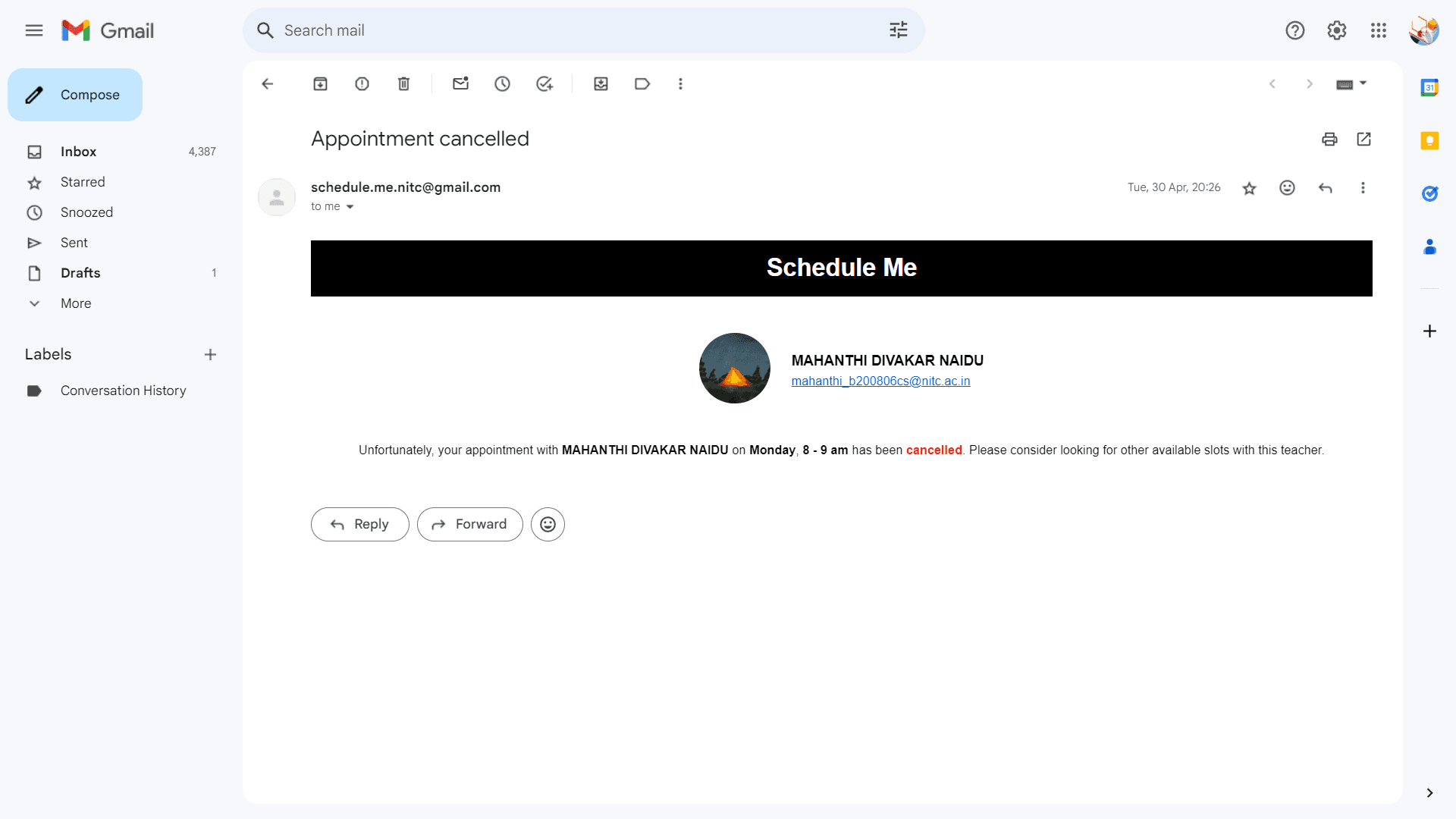
Notifies students in the queue of a slot when a schedule is cancelled by faculty.
Notify when the status changes from waiting to active.
Notifies students in the queue of a slot when a schedule is cancelled by faculty.
Notify when the status changes from waiting to active.
Notifies students in the queue of a slot when a schedule is cancelled by faculty.
Notify when the status changes from waiting to active.
Notifies students in the queue of a slot when a schedule is cancelled by faculty.
NOTE
NOTE
The schedule status includes a "completed" status, which is achieved when hourly and daily schedulers update and lock the completed slots. For demonstration purposes, the schedulers are not included.
In addition, the following functionalities are considered in the initial design
grouping faculty by departments
providing weekly insights on the homepage
allowing removal of specific students from slots
setting limits on the number of schedules
sending email notifications before appointments
The schedule status includes a "completed" status, which is achieved when hourly and daily schedulers update and lock the completed slots. For demonstration purposes, the schedulers are not included.
In addition, the following functionalities are considered in the initial design
grouping faculty by departments
providing weekly insights on the homepage
allowing removal of specific students from slots
setting limits on the number of schedules
sending email notifications before appointments
Tech stack
Tech stack
Frontend
Frontend




Backend
Backend


Deployment
Deployment